CARVIN
Moderate30 minutes - 1 hour13 шагов·Оригинал на iFixit ↗

Steam Deck Audio Board Replacement

Use this guide to replace the audio board on your Steam Deck LCD.

Remember: follow general electrostatic discharge (ESD) safety procedures while repairing your device.

The audio board is home to the Steam Deck's headphone jack and volume buttons.

Note: Valve started shipping Steam Decks with refreshed internal designs in early 2023. Your Steam Deck may look different than the one depicted in the photos, but the procedure is the same. The Steam Deck's audio board design differs between versions. Remove the back cover of your Steam Deck to check what version you have. An original Steam Deck will have a metallic motherboard shield and a fan with square sides, as seen here. A refreshed Steam Deck will have a black motherboard shield and a fan with curved sides, as seen here.

Note: Unfortunately, replacement audio boards are not currently available from Valve as a standalone part. If your board or headphone jack are damaged, we recommend searching the secondhand market for donor parts or contacting Valve for repairs via Steam Support.

Инструменты (4)

Пошаговая инструкция

Шаг 1 · фото 1Шаг 1 · фото 2Шаг 1 · фото 3
1

Prepare your Steam Deck for disassembly

  • Turn on your Steam Deck and allow the battery to discharge below 25% before starting your repairs, as a charged lithium-ion polymer battery can be dangerous if accidentally punctured.
  • As an extra precaution, Valve recommends putting your Steam Deck into ***battery storage mode*** within the BIOS before starting any internal repairs. [guide|149962|Read how to do that here].
  • Power down your Steam Deck and unplug any cables.
  • If you have a microSD card installed, ***make sure to remove it*** before opening the Steam Deck. If you attempt to remove the back cover with it still installed, [post|744361|it could snap right in half|new_window=true].
  • During your repair, it can be helpful at times to lay the Steam Deck face-down into its case to protect the thumbsticks and prevent wobble.
Шаг 1 · фото 1Шаг 1 · фото 2
1

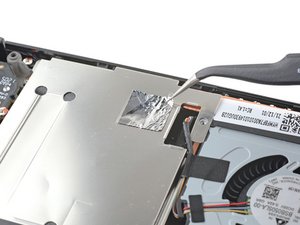
Uncover the hidden shield screw

  • If you have a [link|https://guide-images.cdn.ifixit.com/igi/l2ABGc6CMQFIytZB.full|refreshed Steam Deck version|new_window=true] with the black motherboard cover, skip this step.
  • Use a pair of [product|IF145-020|tweezers] to remove the piece of foil tape covering the hidden screw on the board shield.
  • If possible, try not to rip or tear this tape so it can be reused. If necessary, you can fashion a replacement by cutting a piece of aluminum foil tape to fit.
Шаг 1 · фото 1Шаг 1 · фото 2
1

Disconnect the audio cable

  • Refreshed Steam Decks don't have this audio cable. If you have a refreshed version, skip the next two steps.
  • Use the pointed end of a spudger to lift up the small locking flap on the audio cable's [link|https://www.ifixit.com/Guide/Recognizing+&+Disconnecting+Cable+Connectors/25629#s64969|ZIF connector|new_window=true].
Шаг 2 · фото 1
2

Remove the back cover screws

  • Use a Phillips driver to remove the eight screws securing the back cover:
  • Four coarse thread 9.5 mm-long screws
  • Four fine thread 5.8 mm-long screws
  • Despite the standards, Phillips screwdrivers can vary in size and shape—two drivers labeled as the same size may fit differently in the same screw. Use the size that fits the snuggest into the screw head.
  • Throughout this repair, [product|IF145-491|keep track of each screw|new_window=true] and make sure it goes back exactly where it came from to avoid damaging your Steam Deck.
Шаг 2 · фото 1Шаг 2 · фото 2
2

Remove the shield screws

  • Use a Phillips driver to remove the three screws securing the board shield:
  • One 3.4 mm screw
  • Two 3.7 mm screws
  • Only the two 3.7 mm screws along the left edge are present in refreshed Steam Decks.
Шаг 2 · фото 1Шаг 2 · фото 2
2
  • Use a pair of [product|IF145-020|tweezers] to slide the cable out of its connector.
  • Grip the cable by its pull tab, not by the cable itself.
Шаг 3 · фото 1Шаг 3 · фото 2
3

Unclip the back cover

  • Insert an opening pick into the thin gap between the back cover and the front shell, along the edge of the right grip.
  • If you're having trouble inserting your pick at the grip seam, try starting at either the top or bottom long edges first, then slide the pick towards the grip.
  • Pry up on the back cover to release it from the locking clips.
Шаг 3 · фото 1Шаг 3 · фото 2Шаг 3 · фото 3
3

Remove the shield

  • Remove the board shield.
  • Depending on the age of your Steam Deck, this shield may stick to the thermal pads underneath.
  • During reassembly, ensure that the fan cable [link|https://guide-images.cdn.ifixit.com/igi/GghDN4jfZlhN4fZD.full|lays on the side of the board shield] and isn't pinched underneath.
Шаг 3 · фото 1Шаг 3 · фото 2Шаг 3 · фото 3
3

Disconnect the mic cable

  • Use a spudger to lift up on the mic cable's white locking tab.
  • You should feel a small tactile bump once the connector unlocks.
  • Use a pair of tweezers to pull the mic cable up and out of its connector.
  • With the connector properly unlocked, the mic cable should slide out with little to no resistance. If it doesn't immediately slide out, check that the white tab is fully unlocked.
  • During reassembly, ensure that the locking tab is in its unlocked, lifted position before reinserting the mic cable. Press down on the tab to lock the cable in place.
Шаг 4 · фото 1Шаг 4 · фото 2Шаг 4 · фото 3
4

Remove the back cover

  • Once the clips are disconnected from one edge, the rest disconnect easily.
  • Grip the back cover at the opening you just created and pull it up and away from the device to unclip the long edges.
  • Remove the back cover.
Шаг 4 · фото 1Шаг 4 · фото 2Шаг 4 · фото 3
4

Disconnect the battery

  • Grip the battery cable by its pull tab and pull it directly away from the motherboard to disconnect it.
  • Alternatively, use the flat end of a spudger or a clean fingernail to gently push the connector out of its socket, then disconnect it completely by hand.
Шаг 4 · фото 1
4

Remove the audio board screws

  • Use a Phillips driver to remove the two 3.7 mm screws securing the audio board.
Шаг 5 · фото 1Шаг 5 · фото 2Шаг 5 · фото 3
5

Remove the audio board

  • Use a pair of tweezers to grip the audio board by the headphone jack.
  • Pivot the board up and out of its recess to remove it.

Завершение

To reassemble your device, follow these instructions in reverse order.

Take your e-waste to an R2 or e-Stewards certified recycler.

Repair didn’t go as planned? Try some basic troubleshooting, or ask our Steam Deck answers community for help.

Контент гайда принадлежит iFixit, лицензия CC BY-NC-SA. Открыть оригинал

Steam Deck Audio Board Replacement — Carvin Garage · Carvin